
IPTV Setup Guide for Firestick, Android TV, Smart TV & Apps
Choose the ThunderTV IPTV setup guide that matches your device or app. First, select Firestick, Android TV, Smart TV, or another supported IPTV player. Then follow the matching install and login steps for Xtream Codes, M3U links, or app username and password login.
Choose Your IPTV Setup Guide
Start by choosing the device you want to set up. For example, Firestick users should open the Firestick IPTV setup guide, while Android TV and Smart TV users can follow their own device-specific setup pages.
ThunderTV App
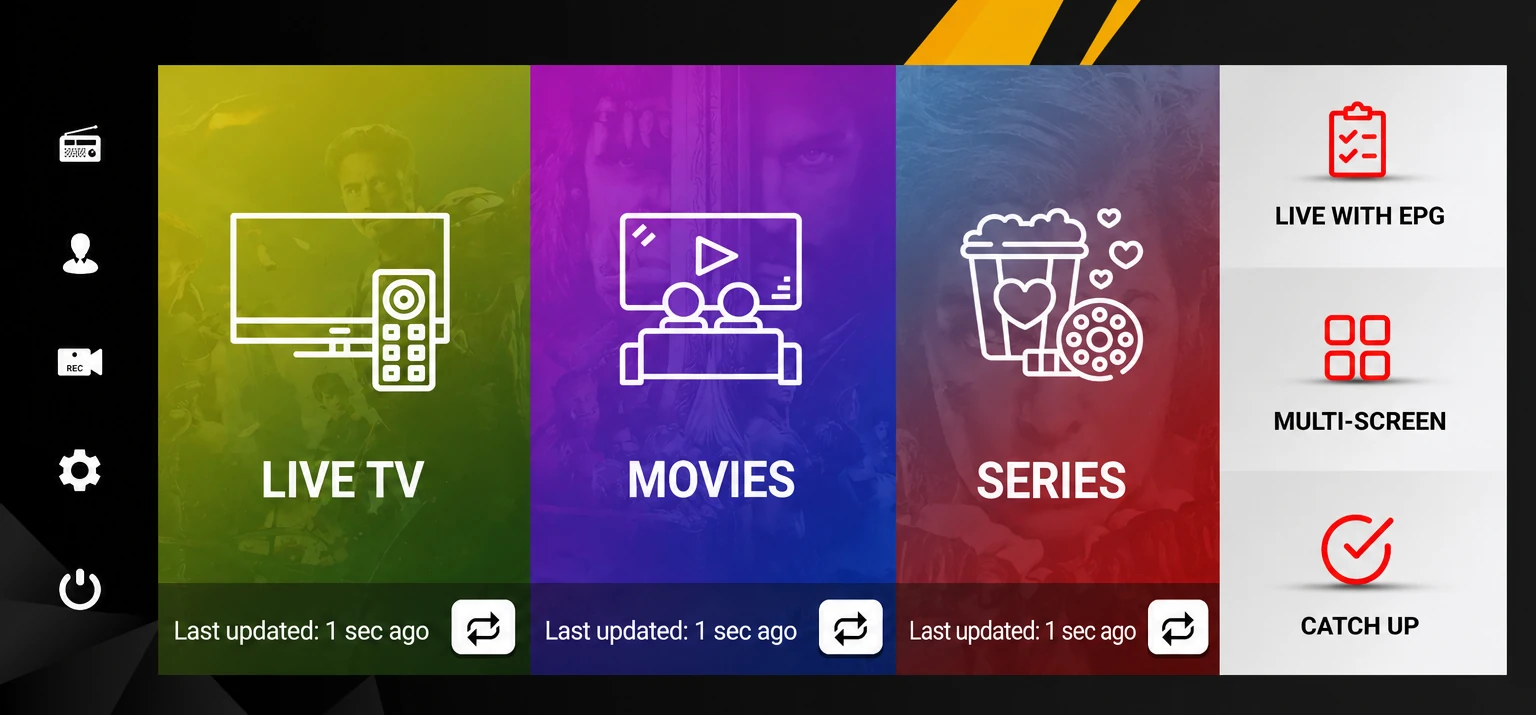
Use the ThunderTV app when your order includes app instructions or a recommended ThunderTV app setup. Open the app, enter your ThunderTV login details, and allow live TV, movies, series, and guide data to load.
ThunderTV AppStore
Use the ThunderTV AppStore to access supported IPTV apps, APK downloads, and setup tools for your device. This is helpful when your setup requires a direct app download, APK install, or alternate supported app.
APK Install Guide
Use this method when an APK install is needed for Firestick, Android Box, Onn Box, Google TV Streamer, Chromecast with Google TV, or Nvidia Shield. Some devices may require Install Unknown Apps to be enabled first.
Before You Start
Before setting up ThunderTV IPTV, make sure you have your login details ready. Depending on your device or app, you may need a username, password, server URL, M3U link, Xtream Codes login, or MAG portal URL.
Active Plan
Make sure your ThunderTV IPTV subscription or trial is active before setup.
Login Details
Have your ThunderTV login details ready before opening your app.
Server / M3U
Some apps may require a server URL, M3U link, Xtream Codes login, or MAG portal.
Supported App
Use a compatible device or IPTV app for the best setup experience.
Stable Internet
A stable internet connection helps reduce setup issues, buffering, or loading problems.
Enable Developer Options and Install Unknown Apps
Some devices require Developer Options or Install Unknown Apps to be enabled before installing an IPTV APK. This is common for Firestick, Android Box, Onn Box, Google TV Streamer, Chromecast with Google TV, and Nvidia Shield when using Downloader or a direct APK install.
Firestick / Fire TV
1. Go to Settings.
2. Open My Fire TV.
3. Select About.
4. Highlight your Fire TV device name.
5. Press select several times until Developer Options are enabled.
6. Go back to My Fire TV.
7. Open Developer Options.
8. Choose Install Unknown Apps.
9. Turn Downloader On.
Android TV / Google TV Devices
1. Go to Settings.
2. Open System or Device Preferences.
3. Open About.
4. Select Android TV OS build several times until Developer Options are enabled.
5. Go back to Settings.
6. Open Apps.
7. Choose Special app access.
8. Open Install unknown apps.
9. Allow Downloader or the app used to install the APK.
Steps may vary by device model, Android version, or Fire TV version. If your device does not show these options, contact ThunderTV support for the best setup method.
Choose Your Device
Select the device you want to use with ThunderTV IPTV. Setup steps may vary depending on the device, app, operating system, and install method.
Firestick
Set up ThunderTV IPTV on Firestick, Fire TV Stick, or Fire TV Cube using the ThunderTV app, Downloader, or a supported IPTV player.
Android TV / Android Box
Use ThunderTV IPTV on Android TV boxes with supported apps, APK downloads, TiviMate, IPTV Smarters, XCIPTV, or iMPlayer.
Onn Box
Set up ThunderTV IPTV on Onn Android TV boxes using Google Play apps, Downloader, APK install, or supported IPTV players.
Google TV
Use ThunderTV IPTV on Google TV Streamer or Chromecast with Google TV using supported apps, APK installs, or Xtream Codes login.
Nvidia Shield
Set up ThunderTV IPTV on Nvidia Shield with Android TV apps, TiviMate, IPTV Smarters, Downloader, or APK install options.
Formuler
Use ThunderTV IPTV on Formuler devices with portal-style setup, compatible IPTV apps, or login details provided after ordering.
Smart TV
Set up ThunderTV IPTV on compatible Smart TVs using app-store IPTV apps, M3U playlist, or Xtream Codes login.
iPhone / iPad
Use ThunderTV IPTV on iPhone or iPad with supported Apple apps such as TiviMax, Smarters Lite, M3U, or Xtream Codes login.
Apple TV
Set up ThunderTV IPTV on Apple TV using compatible IPTV apps such as TiviMax, M3U, Xtream Codes, or portal options where supported.
Windows / Mac
Use ThunderTV IPTV on Windows or Mac with compatible IPTV players, M3U playlist links, or supported desktop app options.
Setup by App
Already know which app you want to use? Choose an app setup guide for ThunderTV login steps, app install help, and supported IPTV player instructions.
ThunderTV App
Use the recommended ThunderTV app with your login details after ordering.
ThunderTV AppStore
Open the ThunderTV AppStore or app download hub to install supported apps and APKs.
IPTV Smarters
Use ThunderTV login details with IPTV Smarters, Smarters Pro, or supported Smarters-style apps.
M3U / Xtream Codes
Use your ThunderTV M3U link or Xtream Codes login with compatible IPTV players.
Need Help Choosing?
Not sure which setup guide to use? Start with your device first, then choose the app or login method that matches the instructions provided after ordering.
ThunderTV IPTV Setup FAQ
Here are quick answers to common ThunderTV IPTV setup questions before choosing your device or app guide.
Which devices work with ThunderTV IPTV?
Start with your device first, such as Firestick, Android TV, Smart TV, iPhone, iPad, Apple TV, Windows, or Mac. After that, choose the app or login method that matches the instructions provided after ordering.
Do I need the ThunderTV AppStore?
Some devices may use the ThunderTV AppStore or app download hub to install supported apps or APK files. If your setup instructions include the ThunderTV AppStore, open it and choose the recommended app for your device.
What login details do I need for ThunderTV IPTV?
Most apps require a ThunderTV username, password, and server URL. Some apps may use an M3U link, Xtream Codes login, or portal URL depending on the device and setup method.
Why is my app not loading channels after setup?
Make sure your ThunderTV plan or trial is active, your login details are entered correctly, and your internet connection is stable. Some networks, routers, firewalls, or ISPs may require extra troubleshooting or a VPN.
Can I use ThunderTV IPTV on more than one device?
You can use ThunderTV IPTV on supported devices, but the number of devices or connections depends on the plan you ordered. Check your plan details before using the same login on multiple devices.