Smart TV IPTV Setup Guide
Use this guide to set up ThunderTV IPTV on compatible Smart TVs using supported IPTV apps, M3U playlist, Xtream Codes login, or app-store installation options.
Before You Start
Before setting up ThunderTV IPTV on a Smart TV, have your login details ready and confirm which IPTV app your TV supports. Smart TV setup can vary by brand, app store, and model.
Compatible Smart TV
Use a compatible Samsung, LG, Android-based Smart TV, or another Smart TV that supports IPTV apps.
Supported IPTV App
Install or open a supported IPTV player from your TV app store, or use the app recommended in your ThunderTV instructions.
Login Details
Keep your ThunderTV username, password, server URL, M3U link, or Xtream Codes login ready before starting.
Smart TV Setup Steps
Use these general steps to set up ThunderTV IPTV on a compatible Smart TV app such as BOB Player, IBO Player, Purple Smart TV, HOT IPTV, IPTV Smarters, Smart STB, or another supported IPTV player. App names, login screens, and activation methods may vary by TV brand and app version.
1. Open Your Smart TV App Store
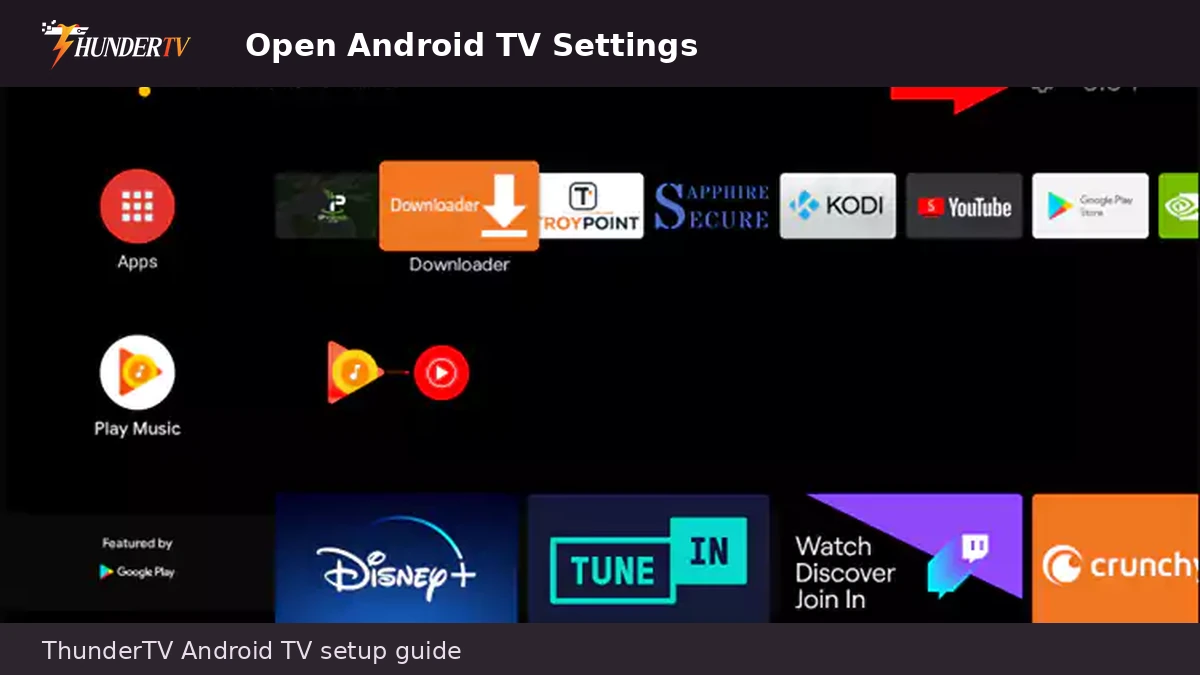
From your Smart TV home screen, open the built-in app store. This may be called Apps, Content Store, Smart Hub, Google Play, or another name depending on your TV brand.
2. Search for a Supported IPTV App
Search for a supported IPTV app such as BOB Player, IBO Player, Purple Smart TV, HOT IPTV, IPTV Smarters, Smart STB, or the app recommended in your ThunderTV setup instructions.
3. Install or Open the App
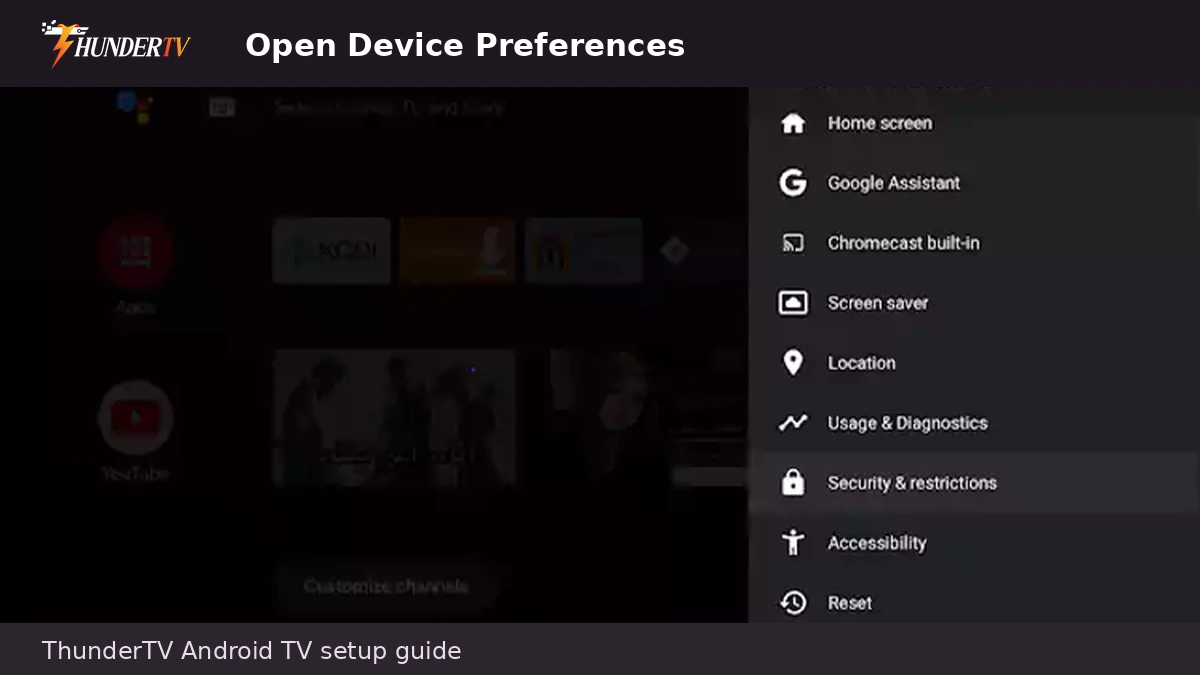
Install the app if it is available in your Smart TV app store. If the app is already installed, open it from your TV home screen.
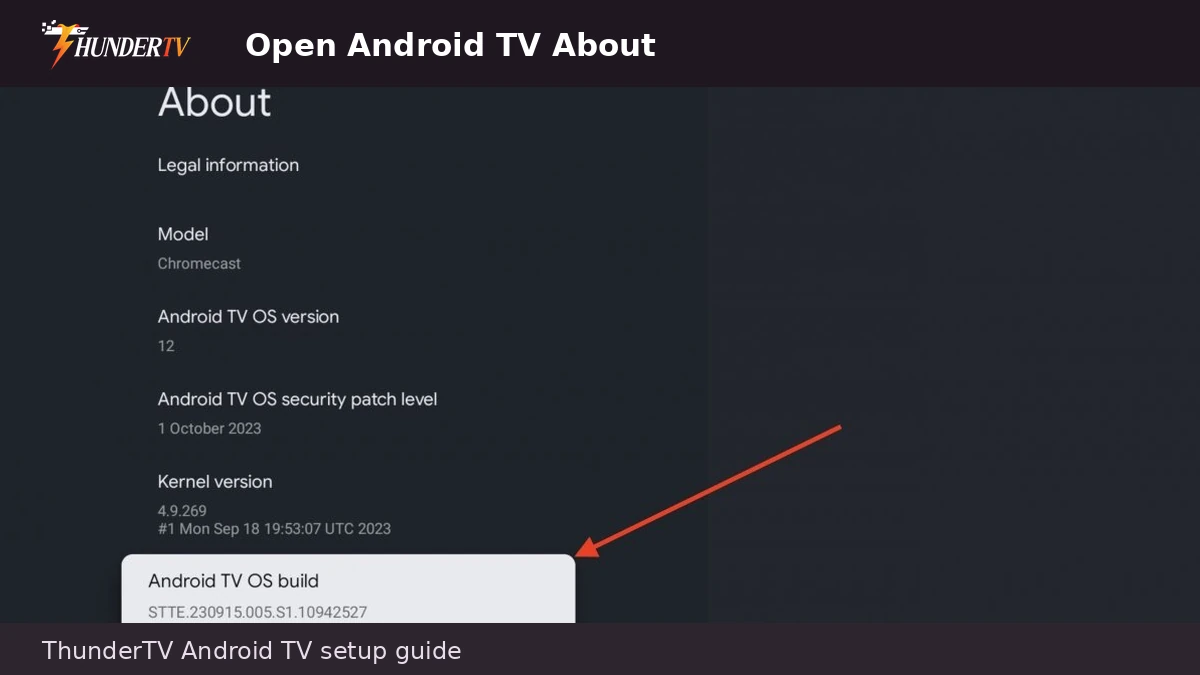
4. Check the App Login Method
Look at what the app asks for. Some apps use Xtream Codes login, some use an M3U playlist, and others may use a portal URL, MAC address, device ID, or activation code.
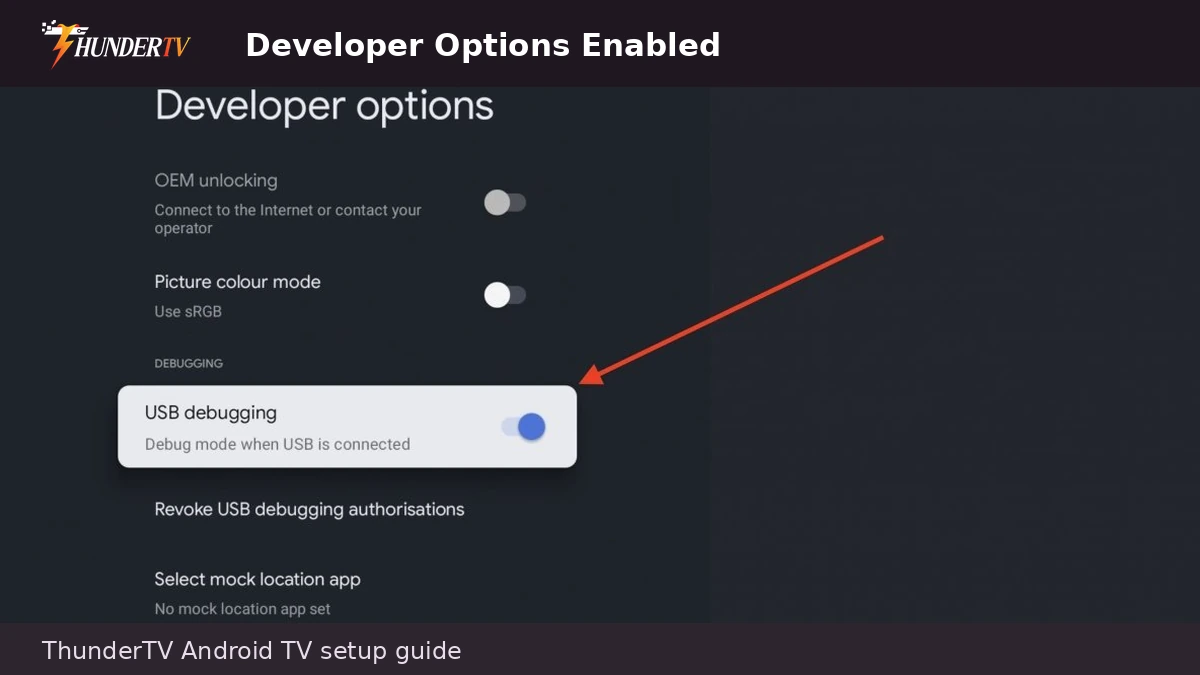
5. Send Device Details if Required
If your app shows a MAC address, device ID, or activation code, send those details to support if they are required for setup. Some Smart TV apps also require separate app activation from the app developer.
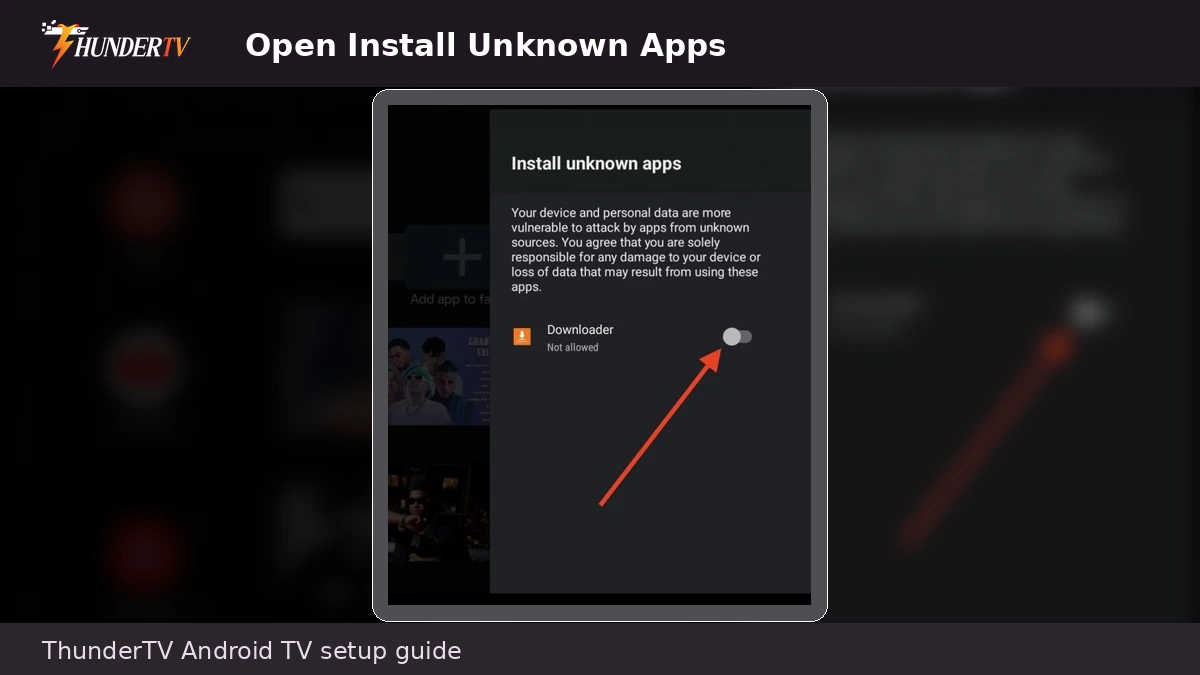
6. Enter Your ThunderTV Details
Enter the ThunderTV username, password, server URL, M3U link, portal URL, or Xtream Codes details provided after ordering. Make sure there are no extra spaces or typing mistakes.
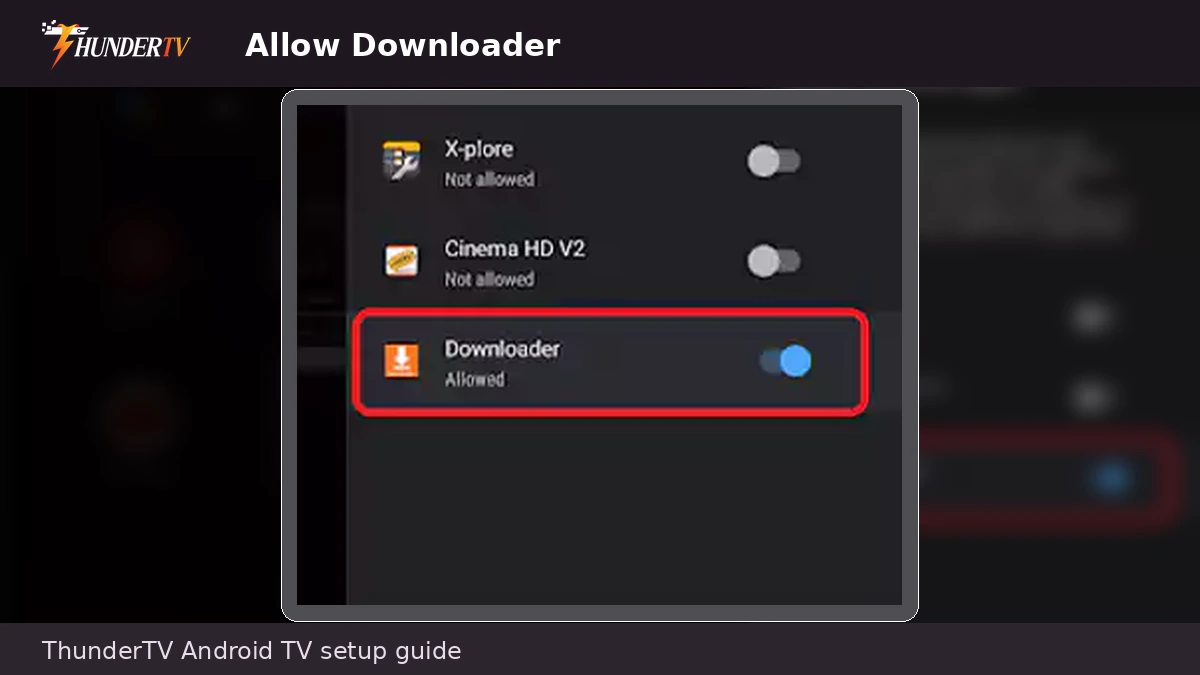
7. Save or Add the Playlist
Save the profile, playlist, or portal inside the app. The button may say Add User, Add Playlist, Login, Save, Connect, or Submit depending on the app.
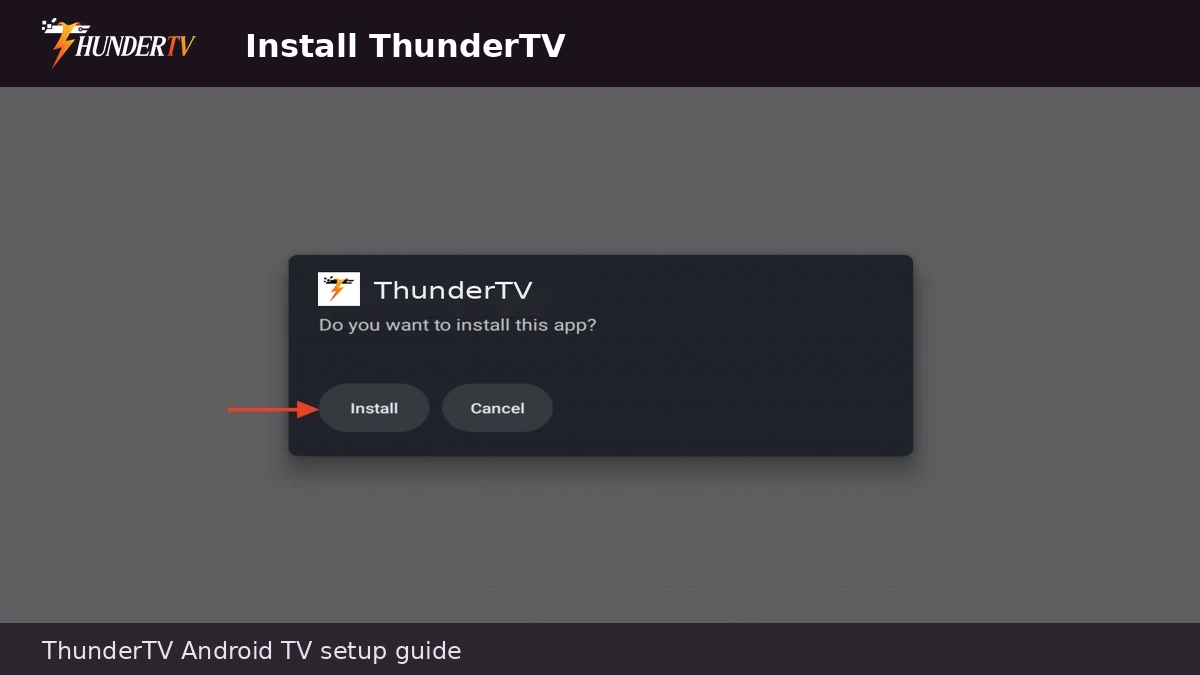
9. Test Playback
Open a live TV category and test playback. If channels do not load, recheck your login details, confirm your ThunderTV plan or trial is active, and try restarting the app or TV.
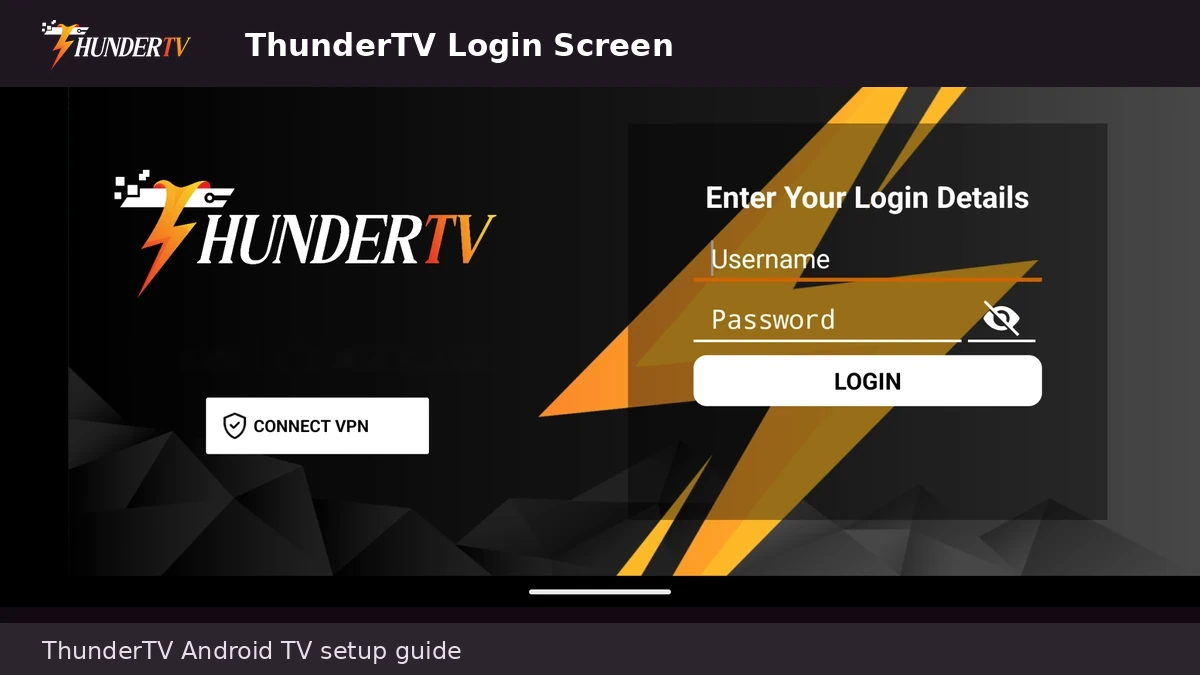
9. Let Channels and Guide Load
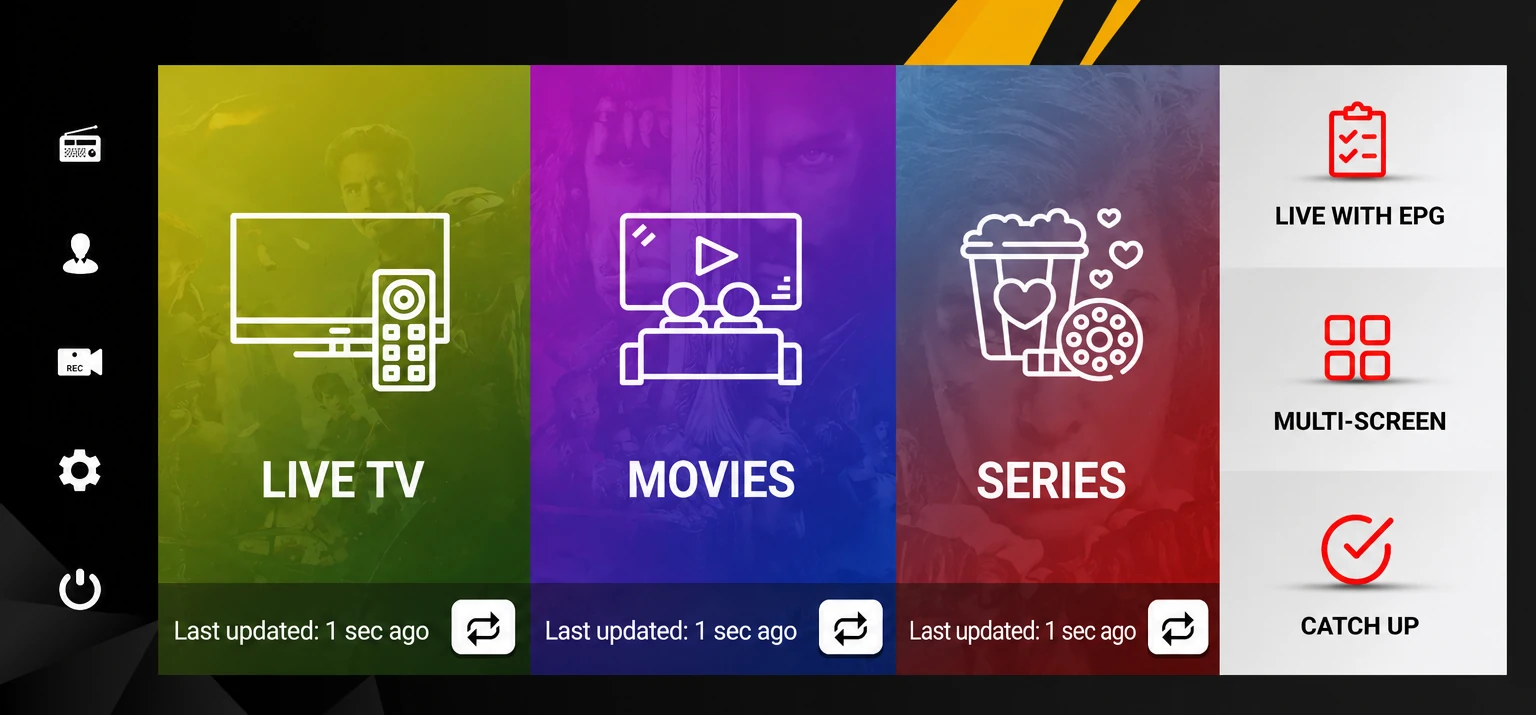
After logging in, allow live TV, movies, series, and guide data to load. This may take a few minutes the first time.