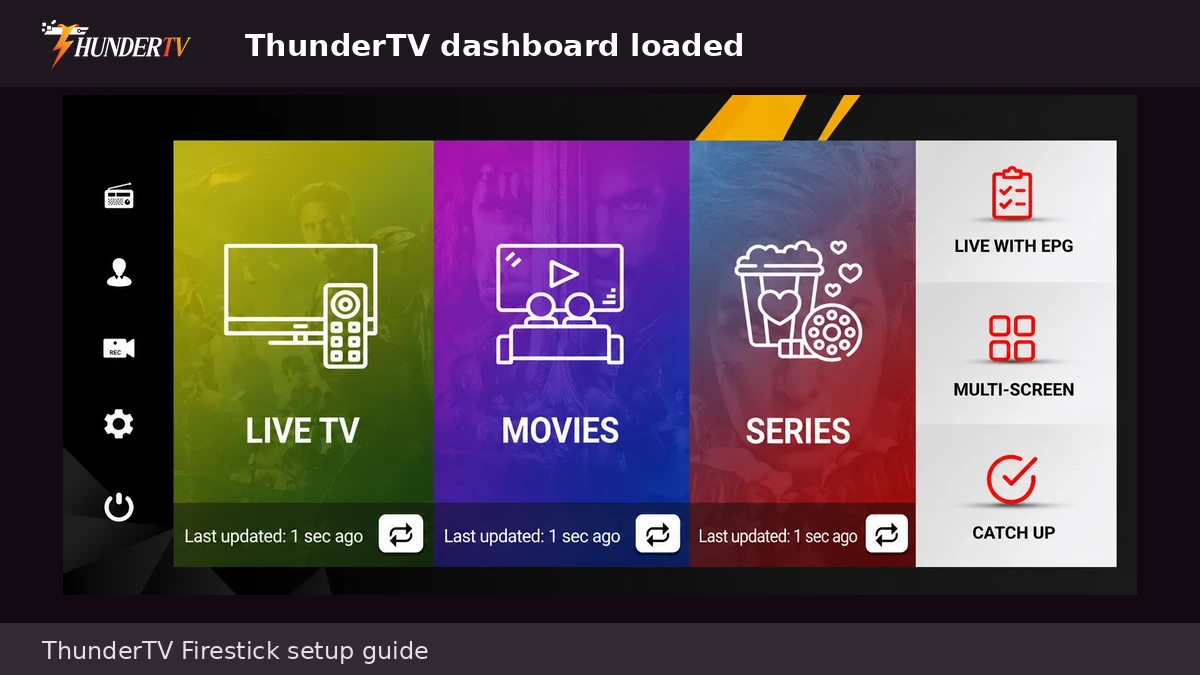
Firestick IPTV Setup Guide
Follow these steps to set up ThunderTV IPTV on Firestick, Fire TV Stick, or Fire TV Cube. You can use the ThunderTV app, the ThunderTV AppStore, Downloader, or another supported IPTV app depending on the setup instructions provided after ordering.
Before You Start
Before setting up ThunderTV IPTV on Firestick, make sure your subscription or trial is active and you have your login details ready. Depending on your setup method, you may need your username and password, server URL, M3U link, Xtream Codes login, or app install instructions.
Active Plan
Make sure your ThunderTV IPTV subscription or trial is active before starting the Firestick setup.
Login Details
Have your ThunderTV login details ready before opening the app or IPTV player.
Downloader or AppStore
Use Downloader, the ThunderTV AppStore, or the app instructions provided after ordering.
Firestick Setup Steps
Follow these Firestick setup steps after your ThunderTV subscription or trial is active. Steps may vary slightly depending on your Fire TV version and the app you choose to install.
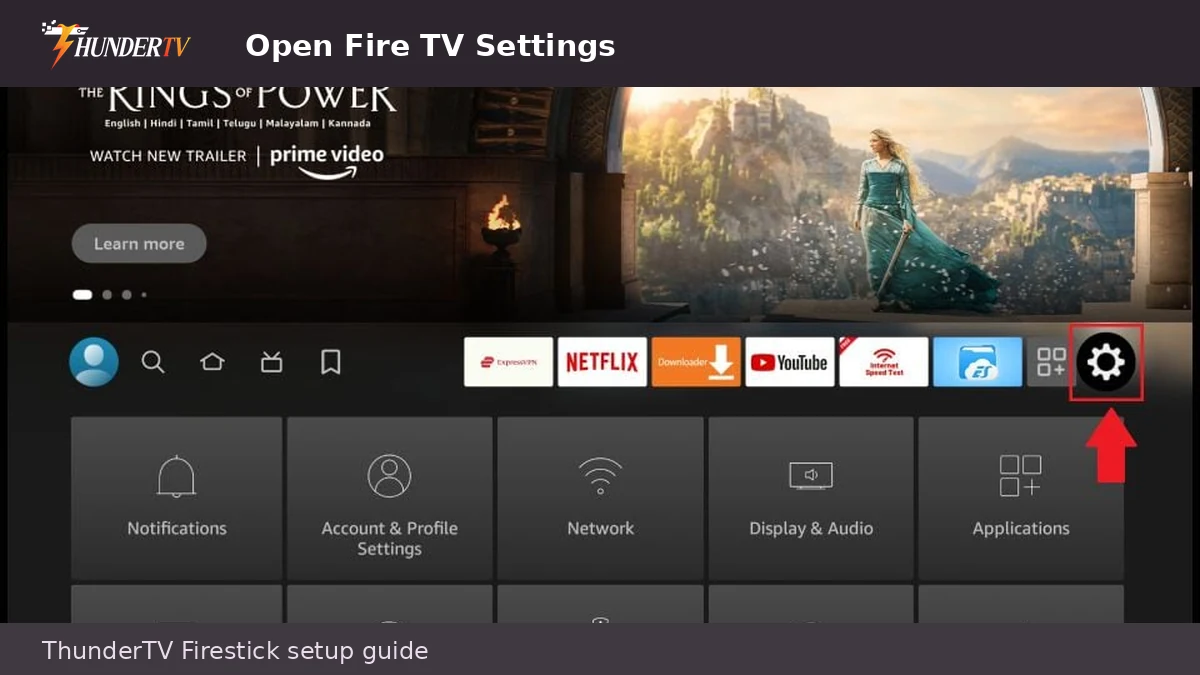
1. Open Fire TV Settings
From the Fire TV home screen, open Settings. This is usually the gear icon on the right side of the main menu.
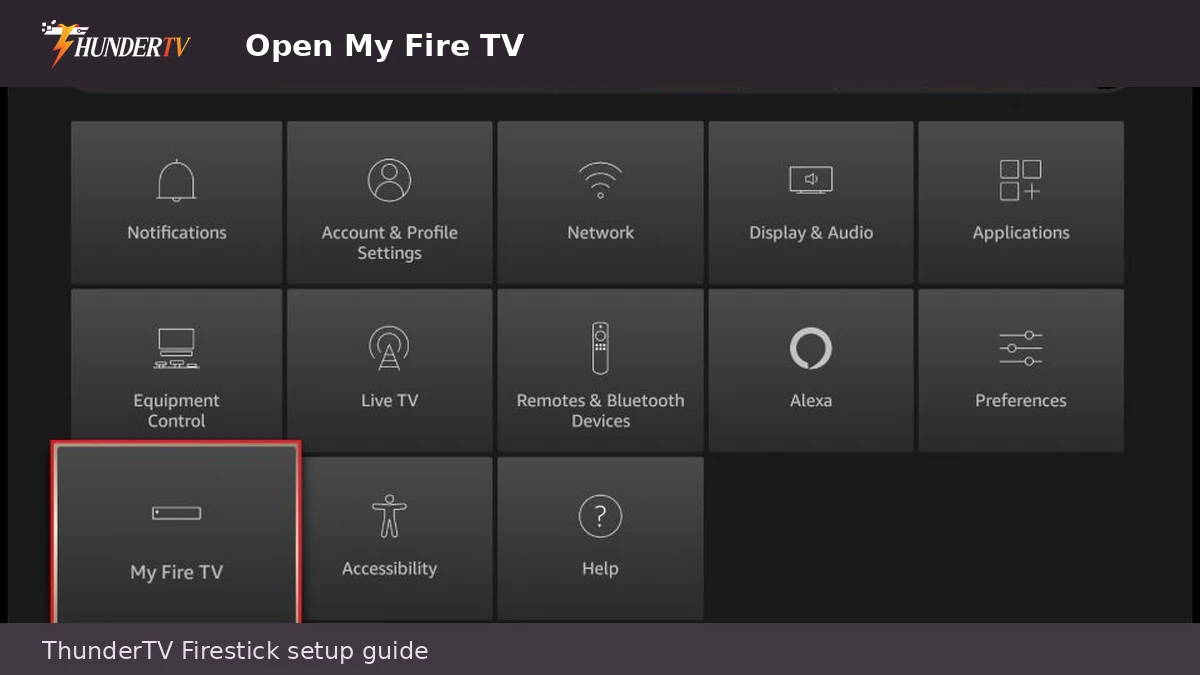
2. Open My Fire TV
In Settings, select My Fire TV. On some Fire TV versions, this may appear under Device & Software.
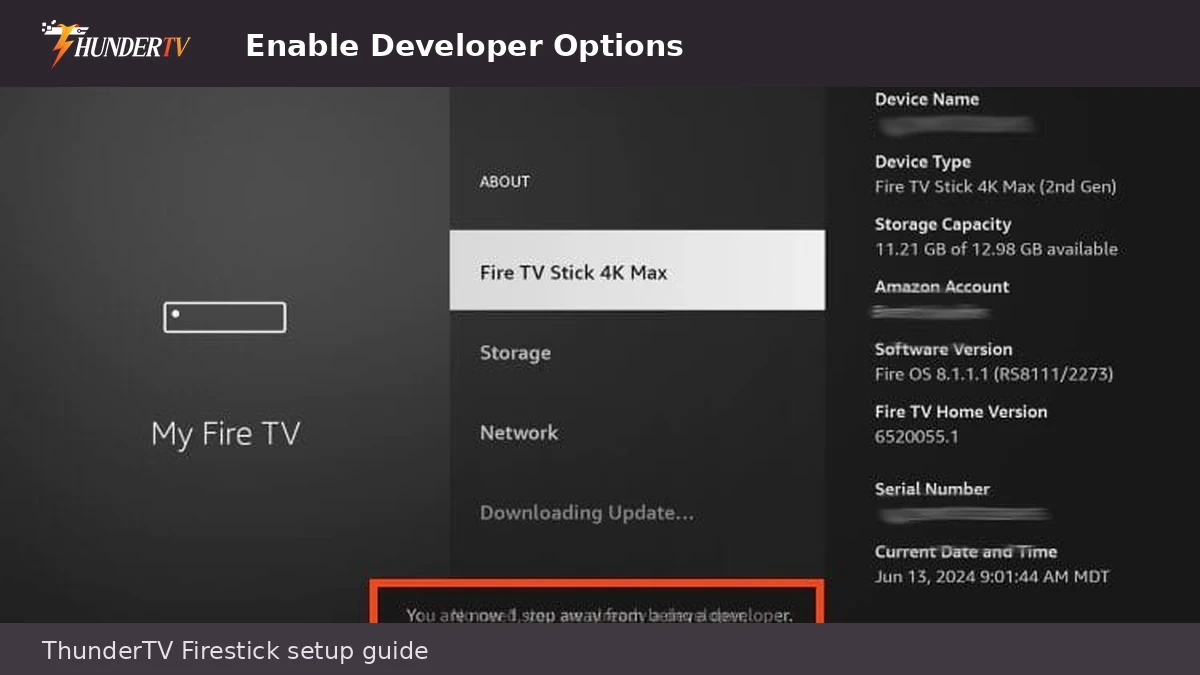
3. Enable Developer Options
Open About, highlight your Fire TV device name, then press Select several times until Developer Options are enabled.
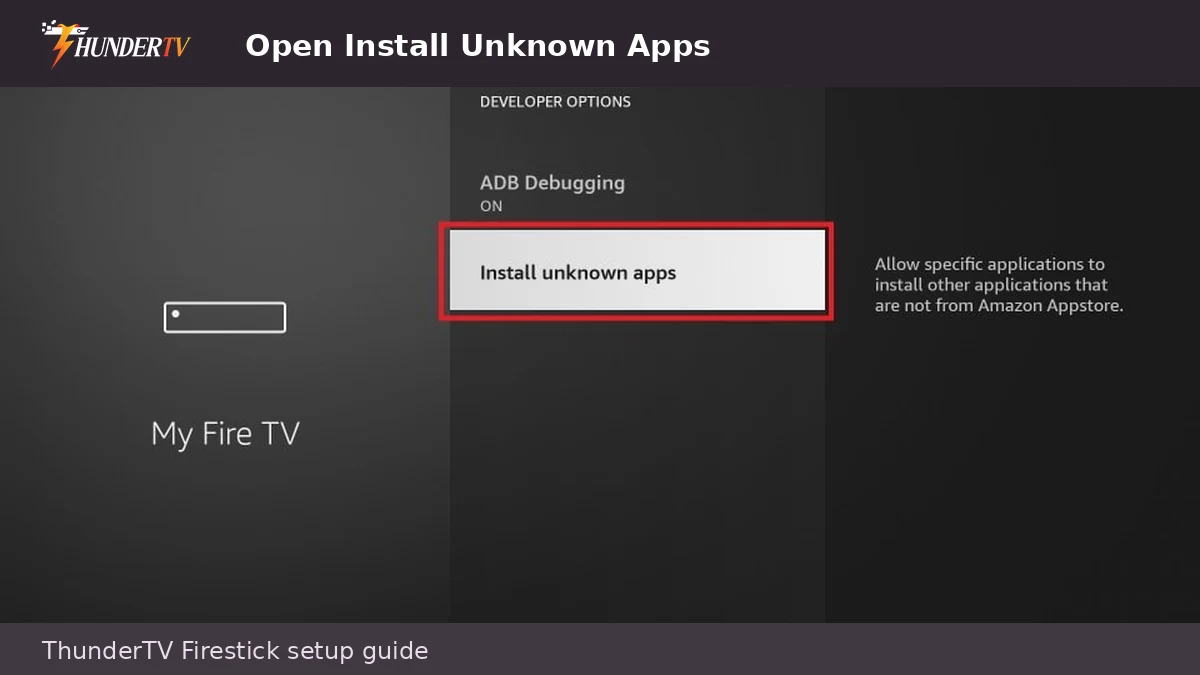
4. Allow Install Unknown Apps
Go back to My Fire TV, open Developer Options, select Install Unknown Apps, and turn Downloader On.
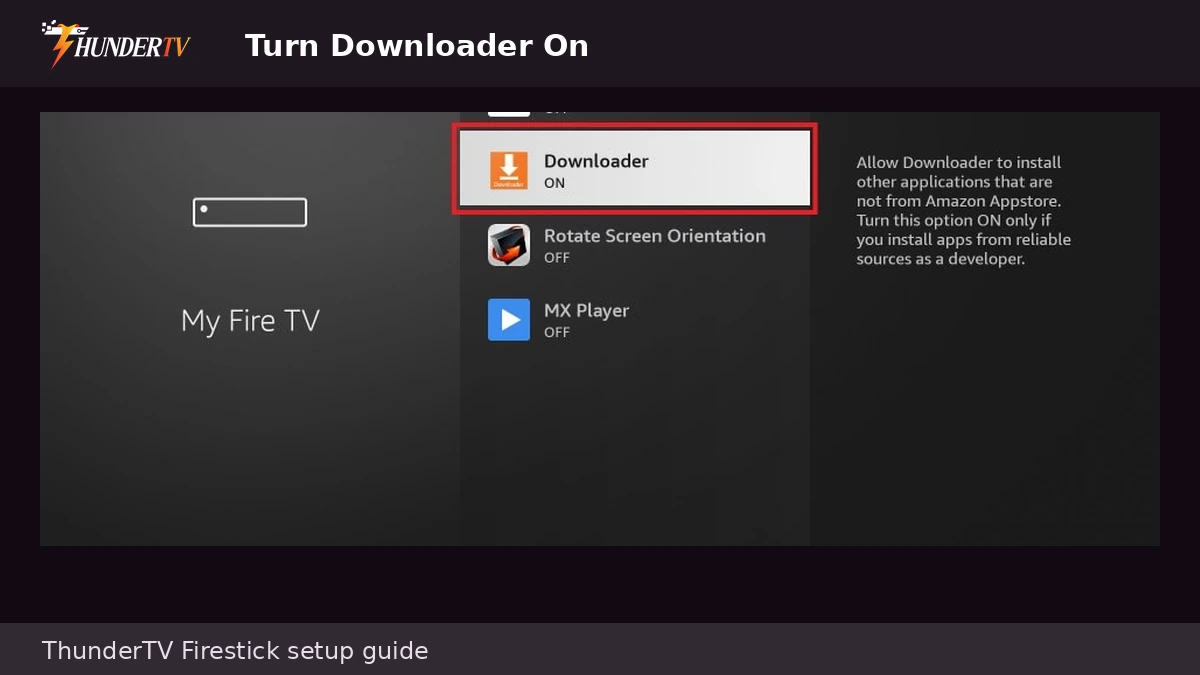
5. Turn Downloader On
In Install Unknown Apps, select Downloader and make sure it is turned On before installing the ThunderTV app.
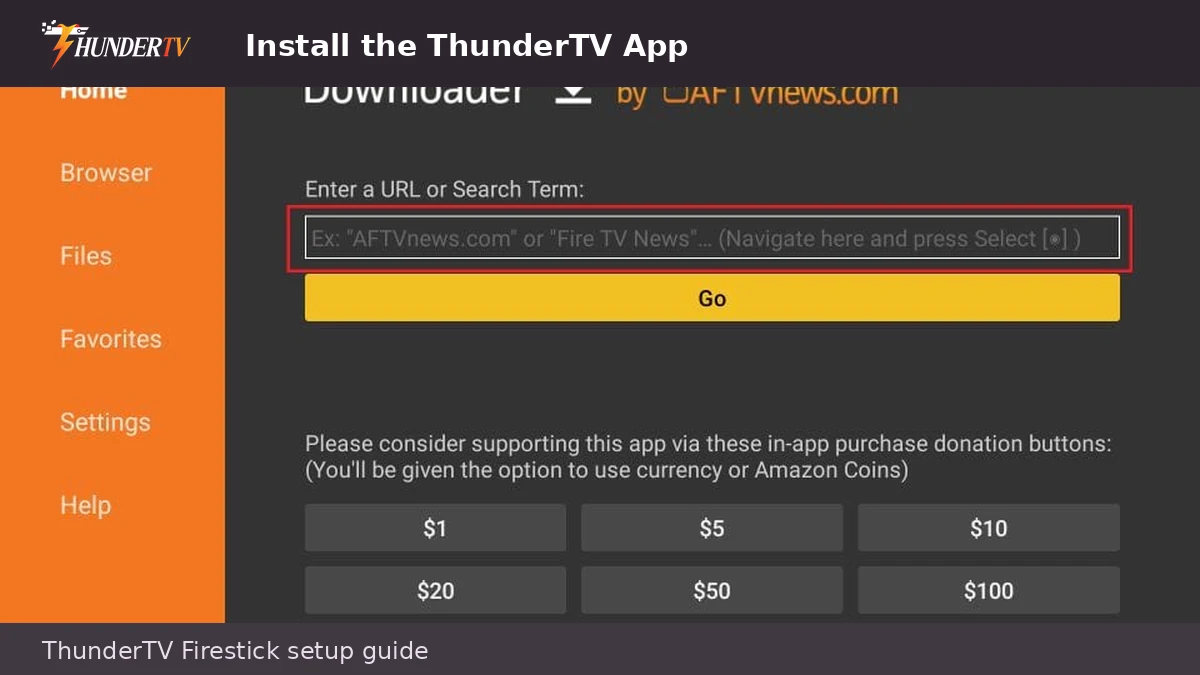
6. Install the ThunderTV App
Enter the app download link or use the ThunderTV AppStore instructions provided after ordering. Download and install the recommended ThunderTV app or supported IPTV app.
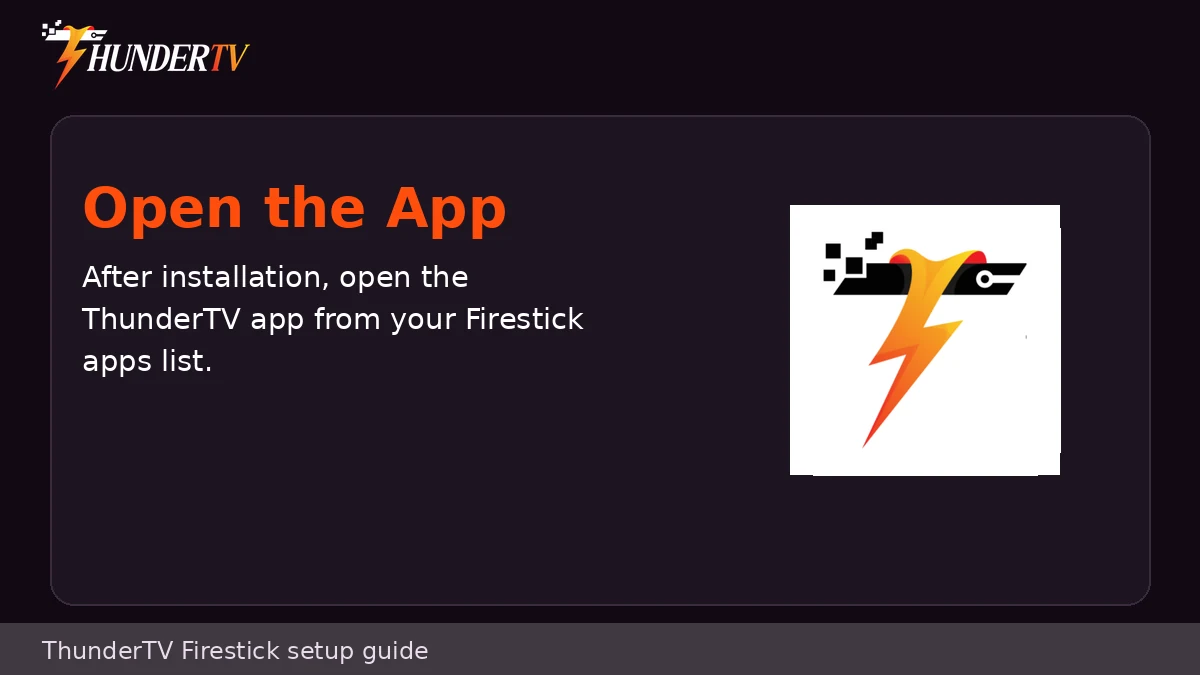
7. Open the App
After installation, open the app from your Firestick apps list.
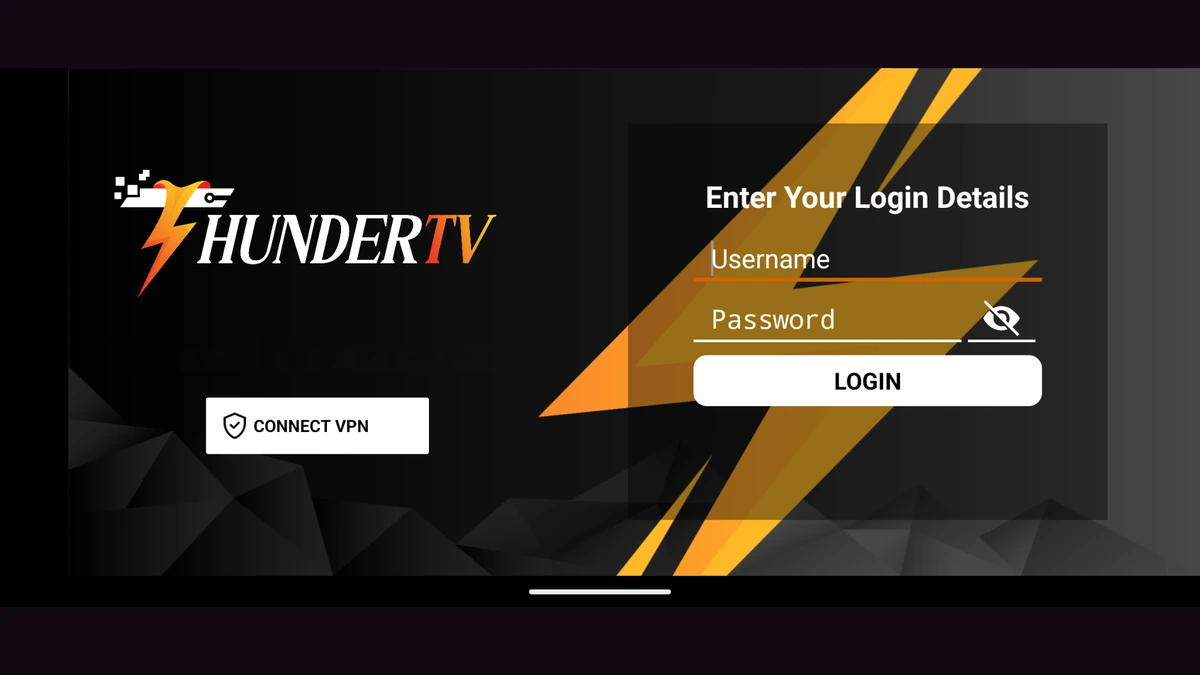
8. Enter Your Login Details
Enter the username, password, server URL, M3U link, or Xtream Codes details provided after ordering. The required fields depend on the app you are using.
9. Let Channels and Guide Load
After logging in, allow live TV, movies, series, and guide data to load. This may take a few minutes the first time.